Email settings.
Mail Setup on iPhone/iPad
Manually Adding the Account
If you need to set up your email account manually, make sure that you know the email settings for your account. You will need your email address and password. If you are unsure of your password please contact us at (320) 393-2115
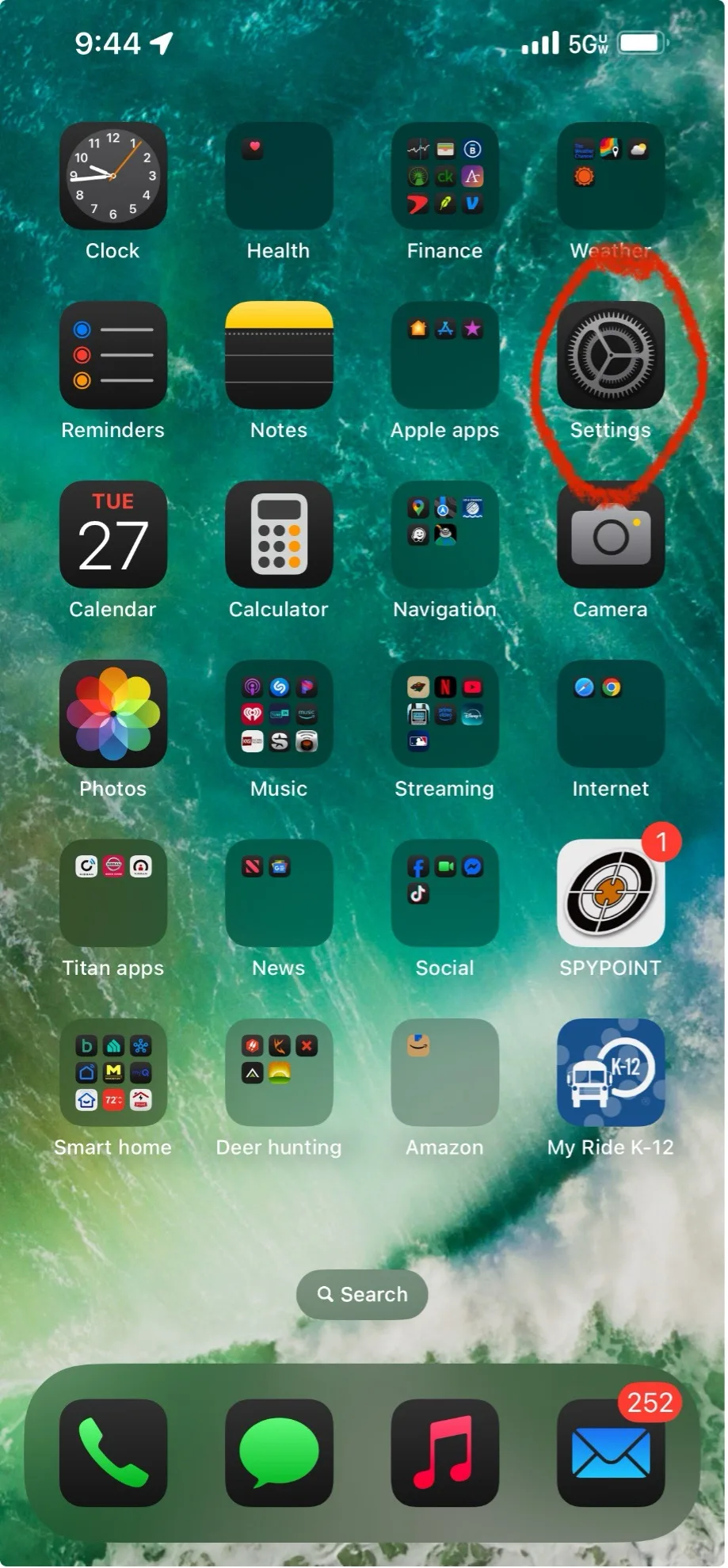
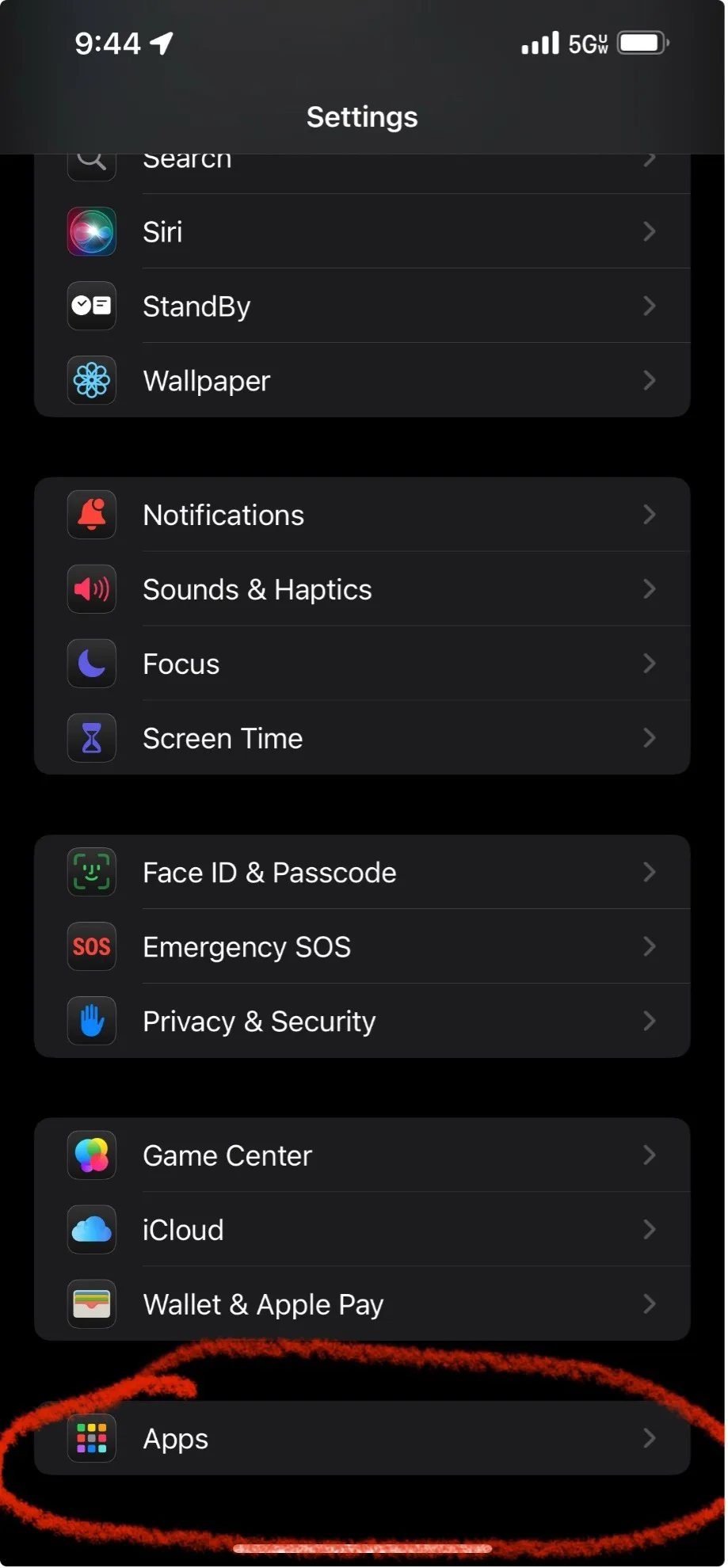
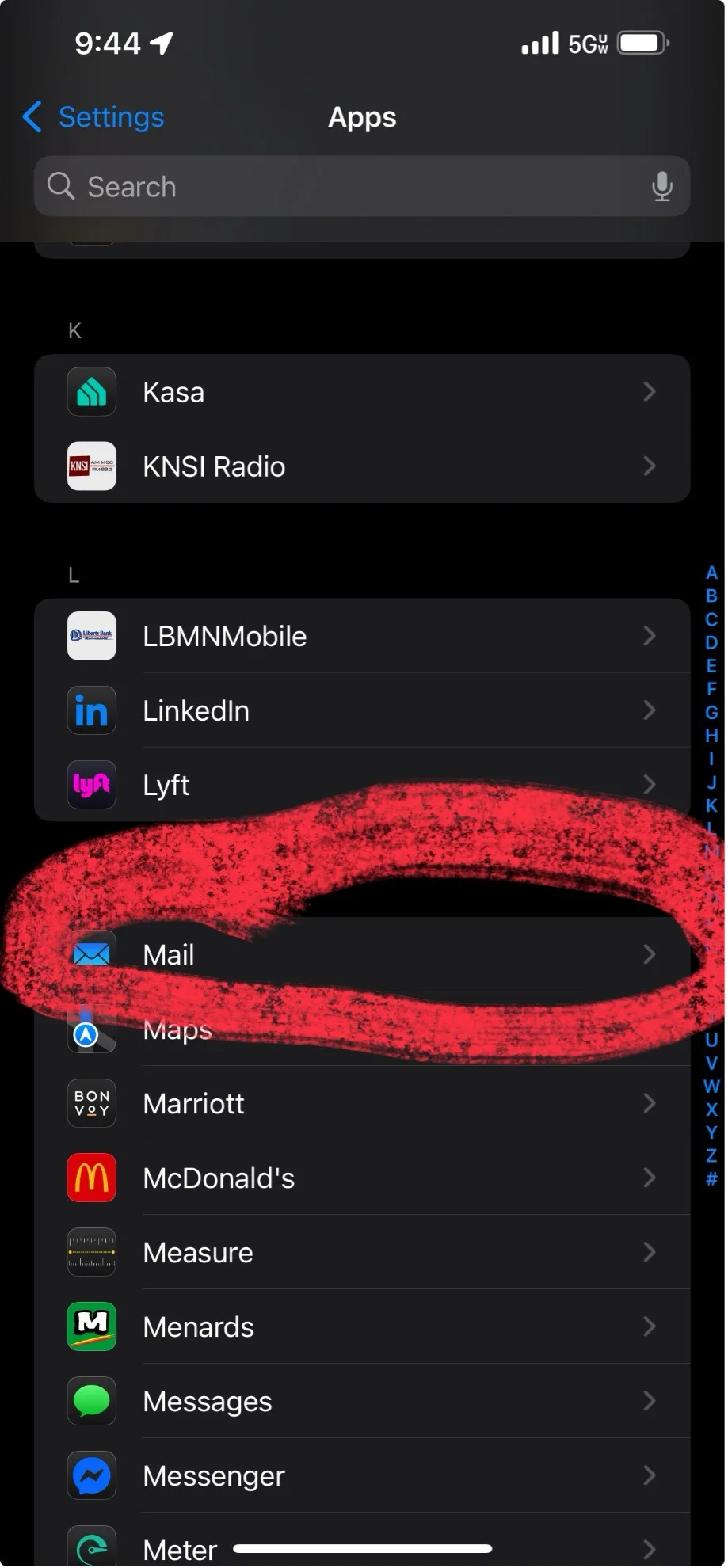
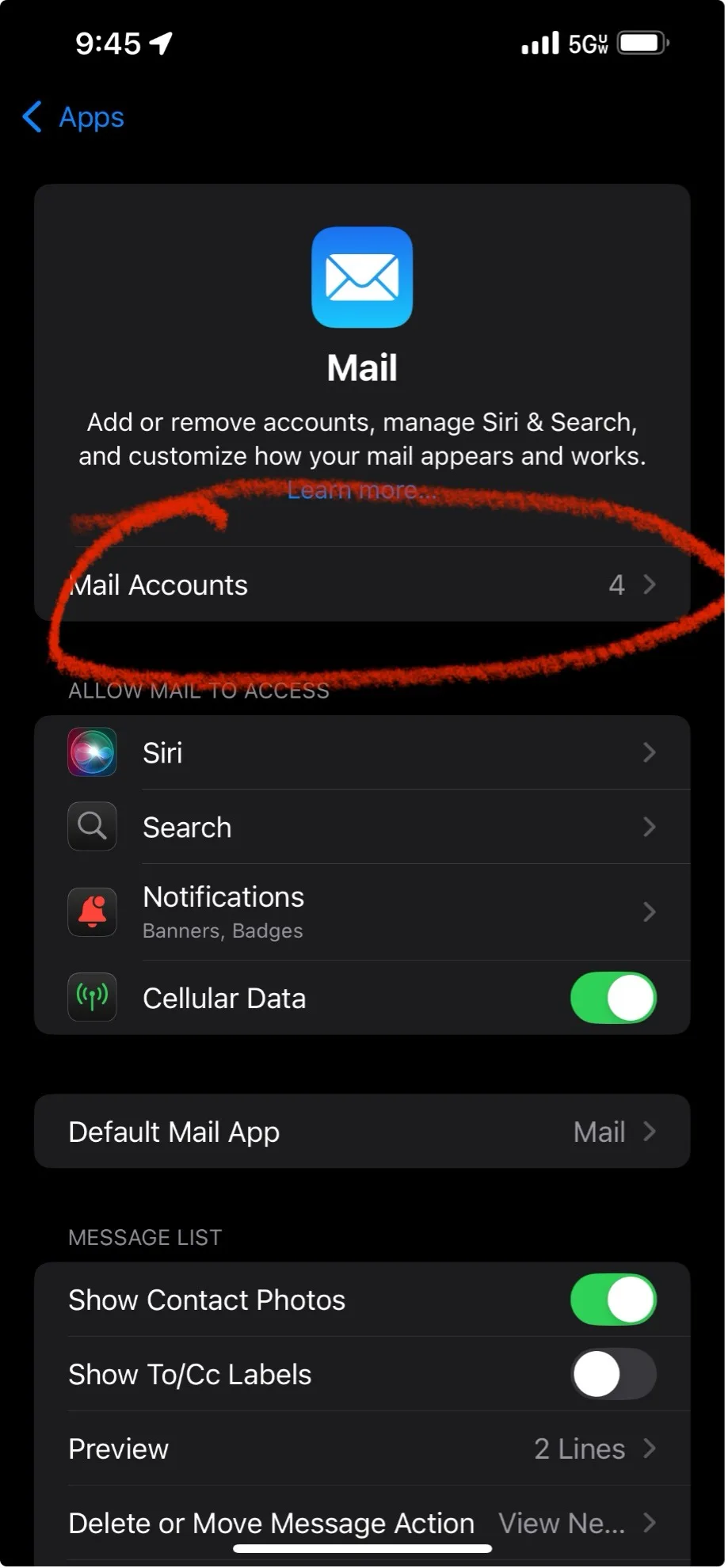
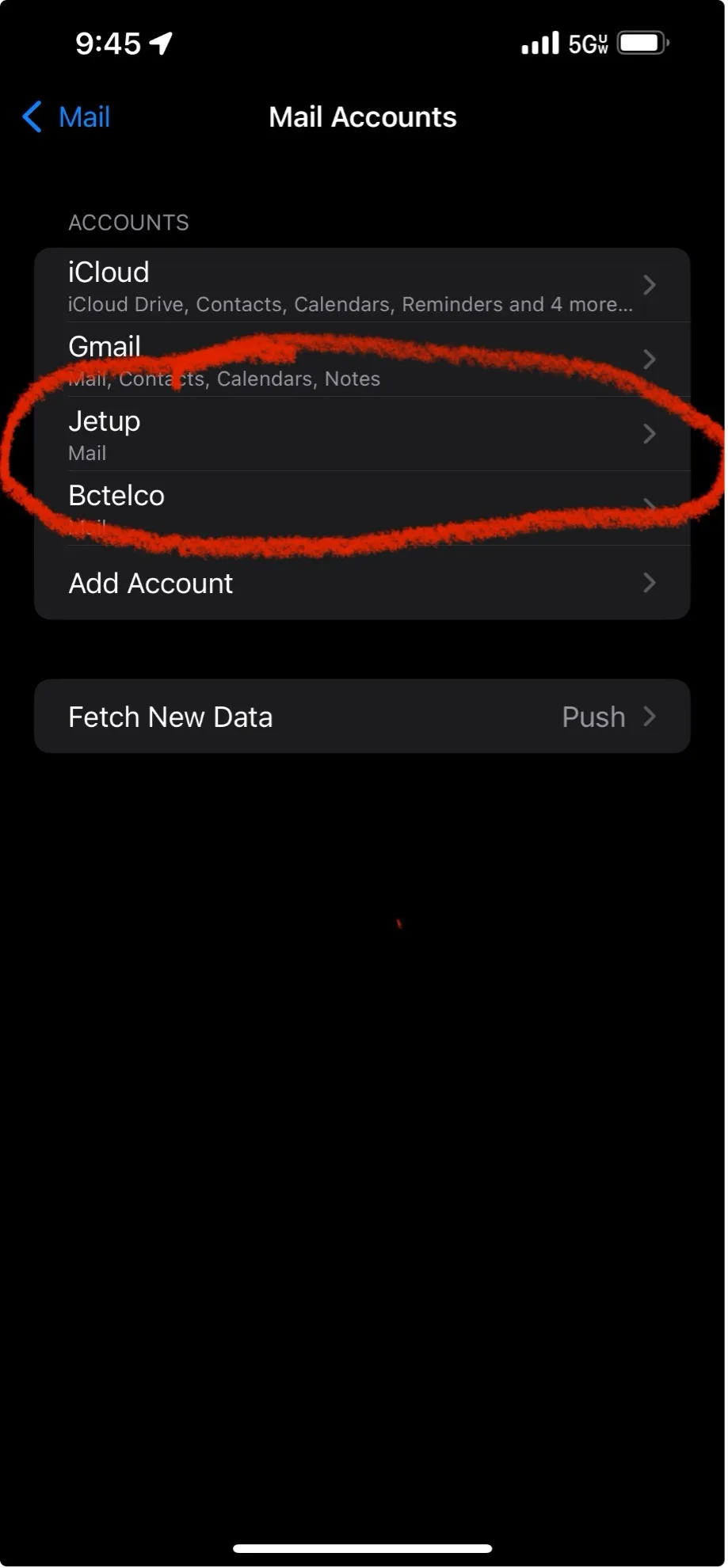
- Go to Settings > Apps > Mail, then tap Mail Accounts.
- Tap Add Account, tap Other, then tap Add Mail Account.
- Enter your name, email address, password, and a description for your account.
- Tap Next. Mail will try to find the email settings and finish your account setup.
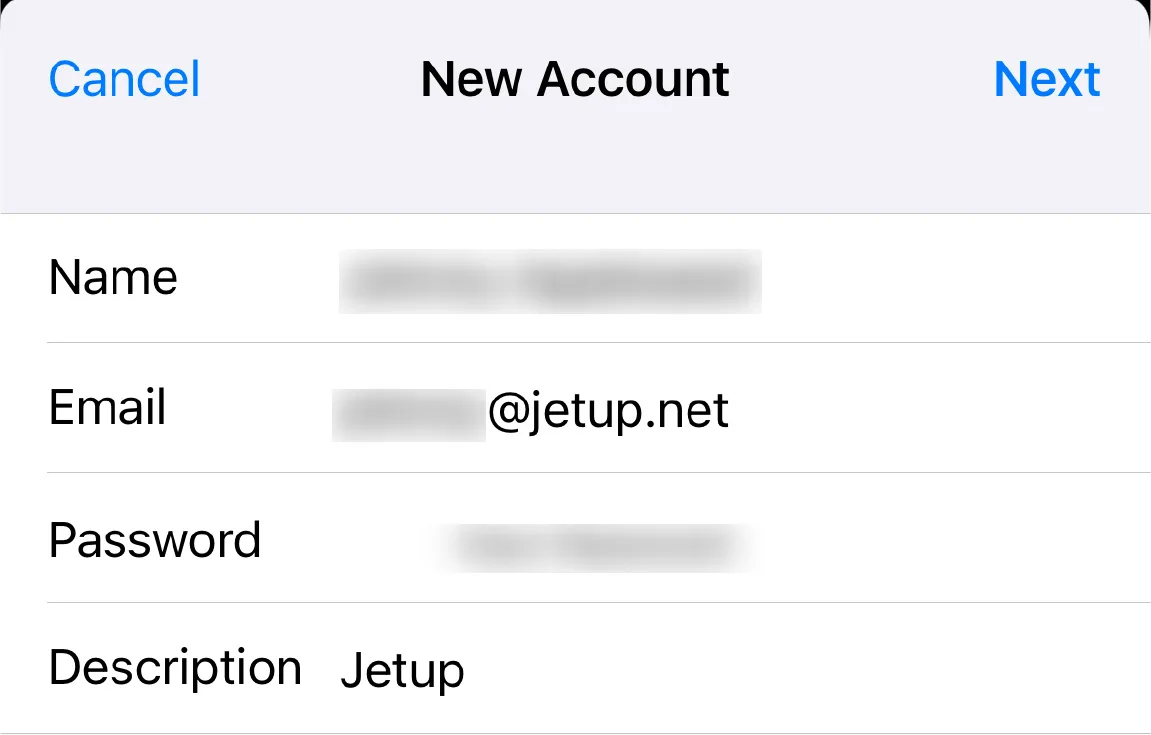
Entering your account settings
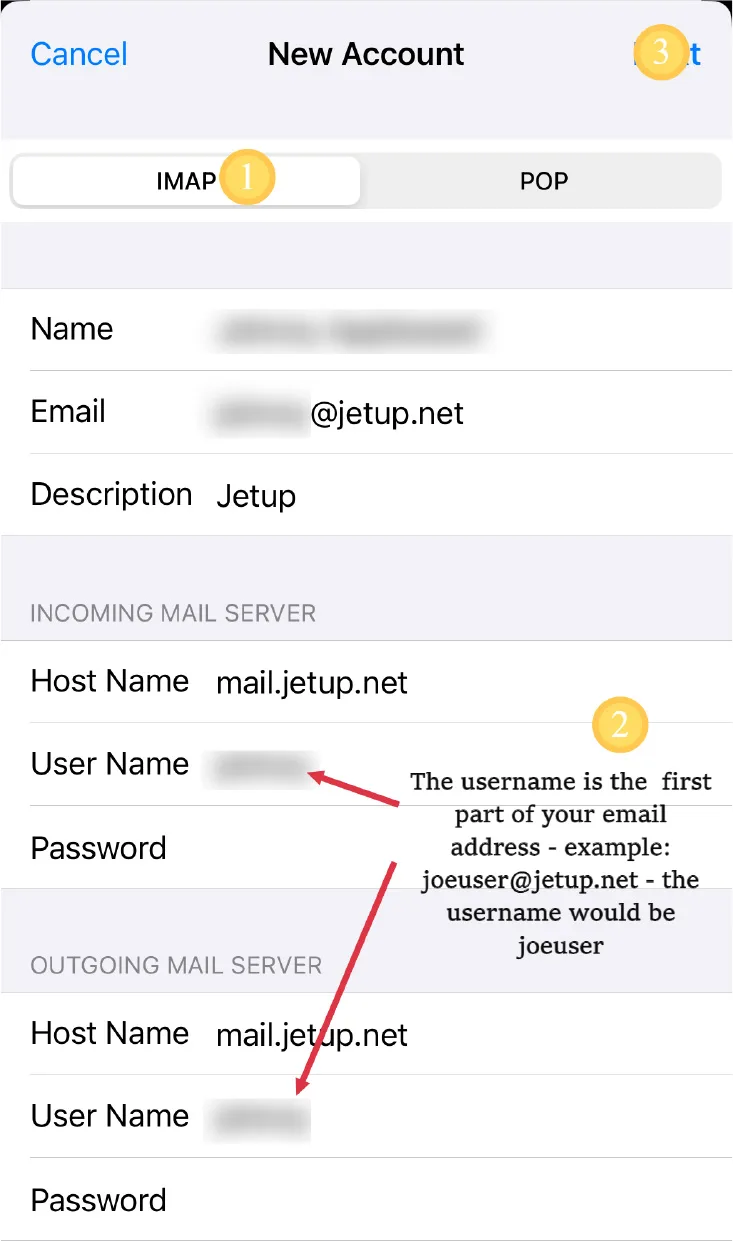
Mail should proceed to the next screen. Here can enter the account manually. Tap Next, then follow the steps:
- Choose IMAP for your new account.
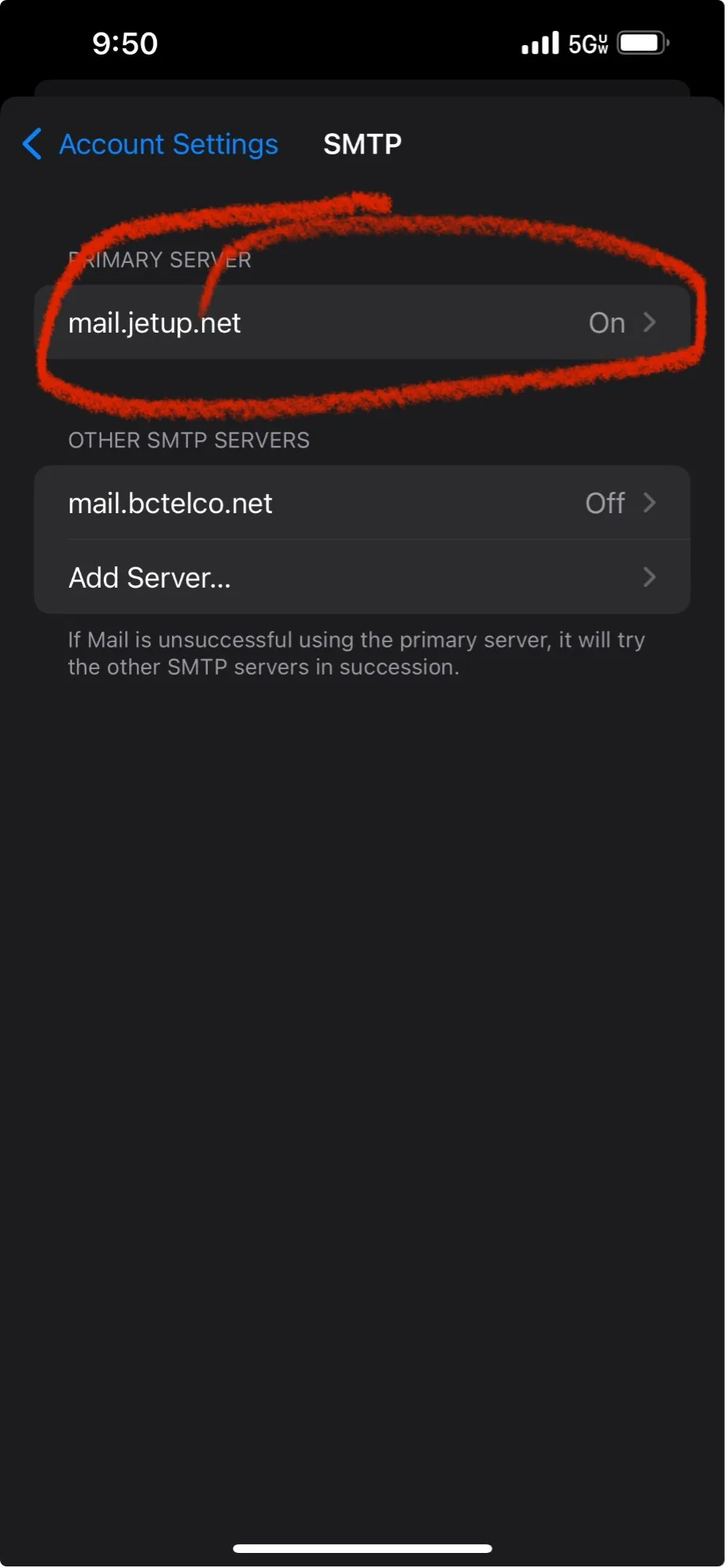
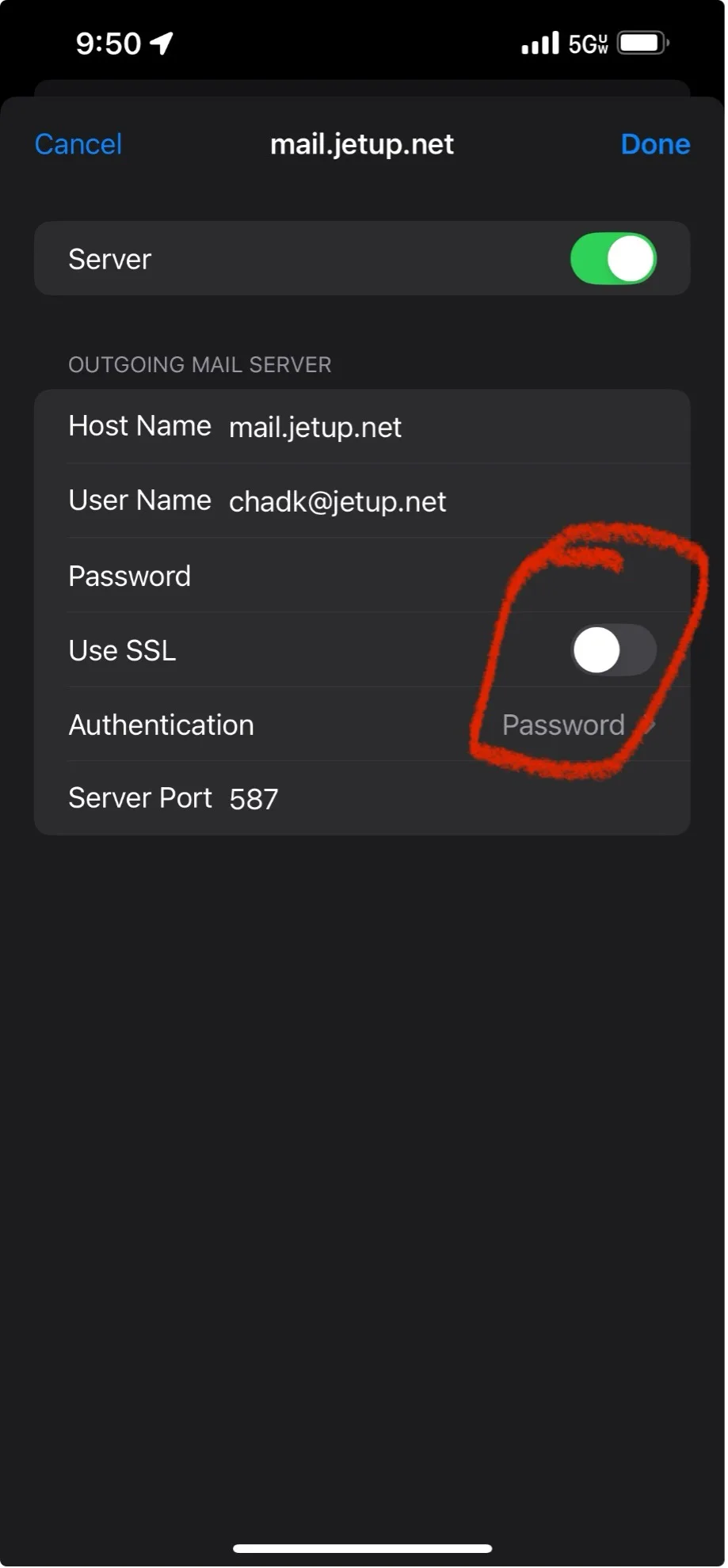
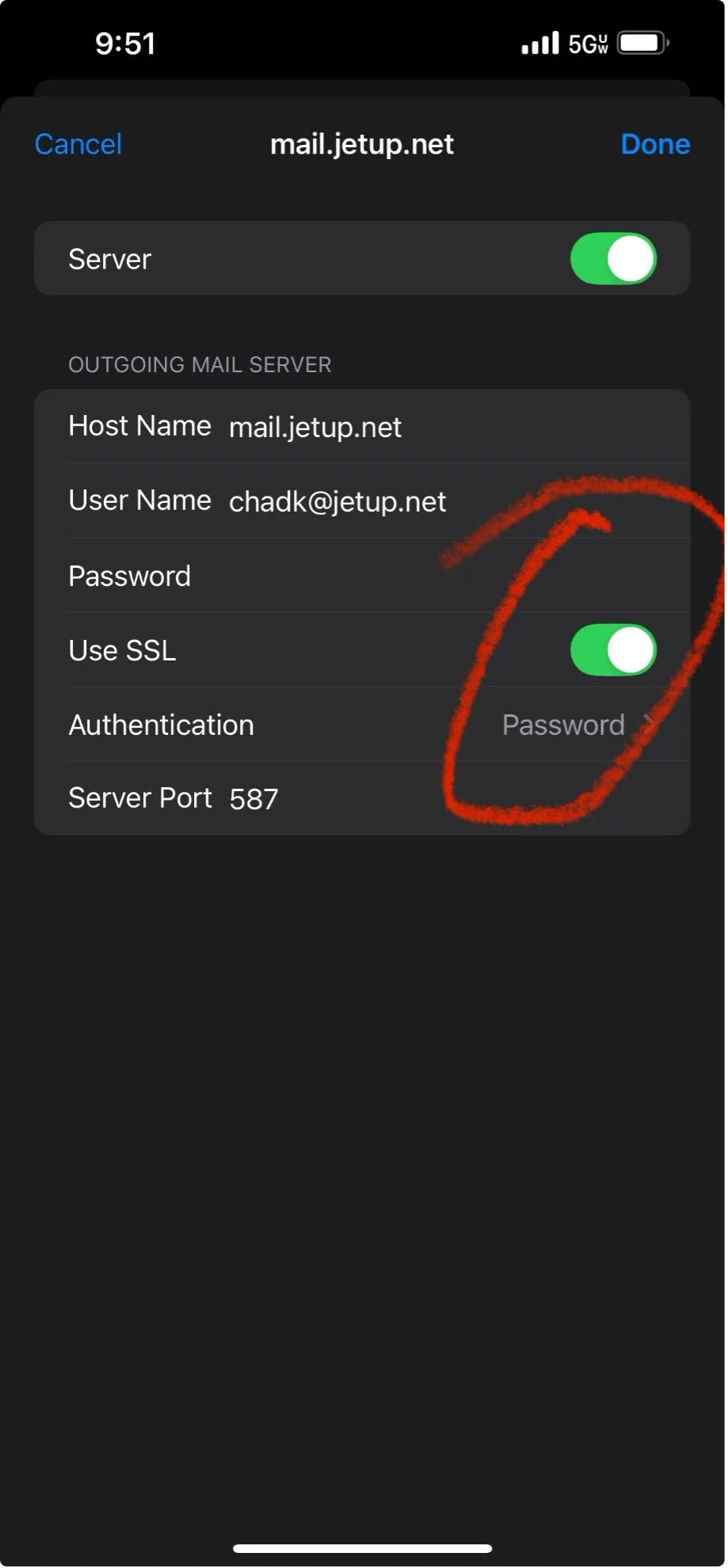
- Enter the information for Incoming Mail Server and Outgoing Mail Server.
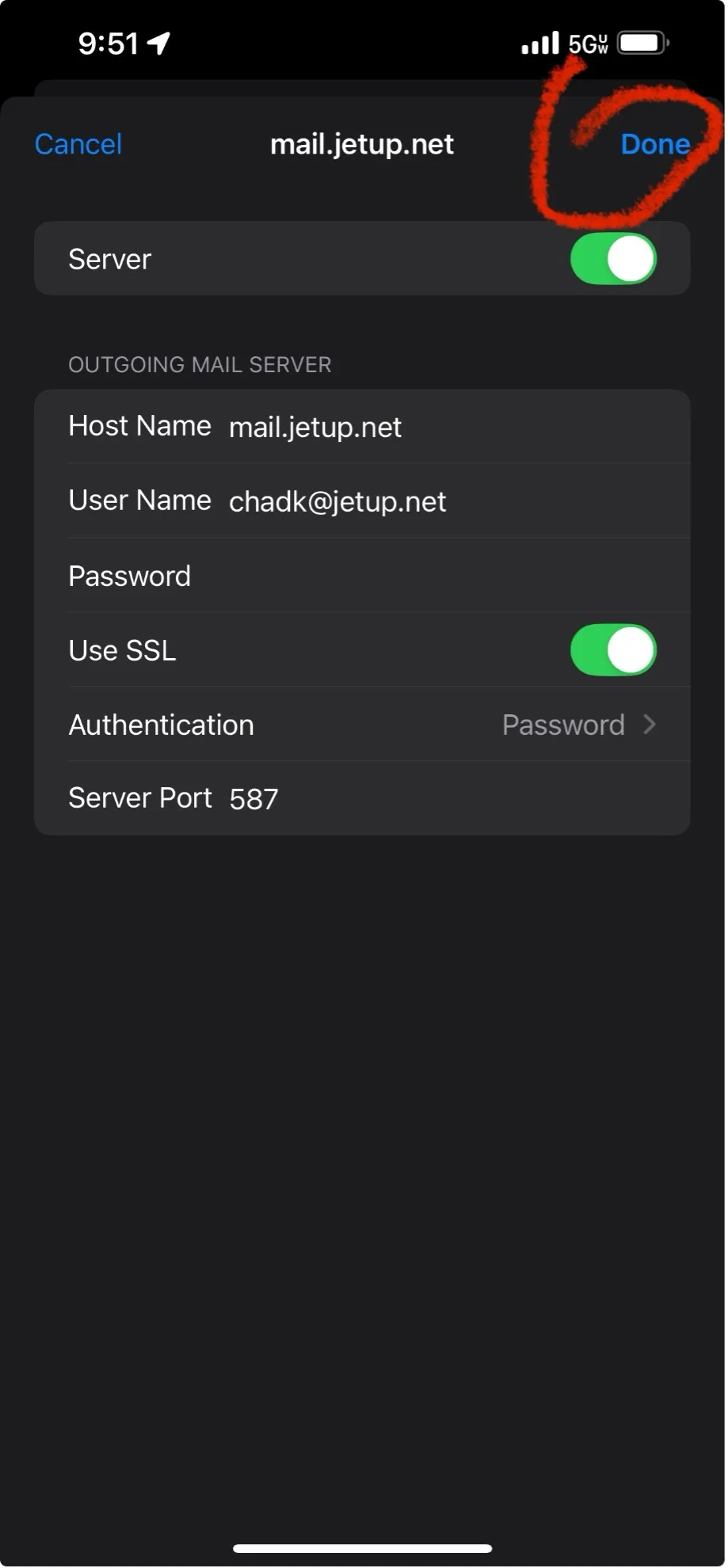
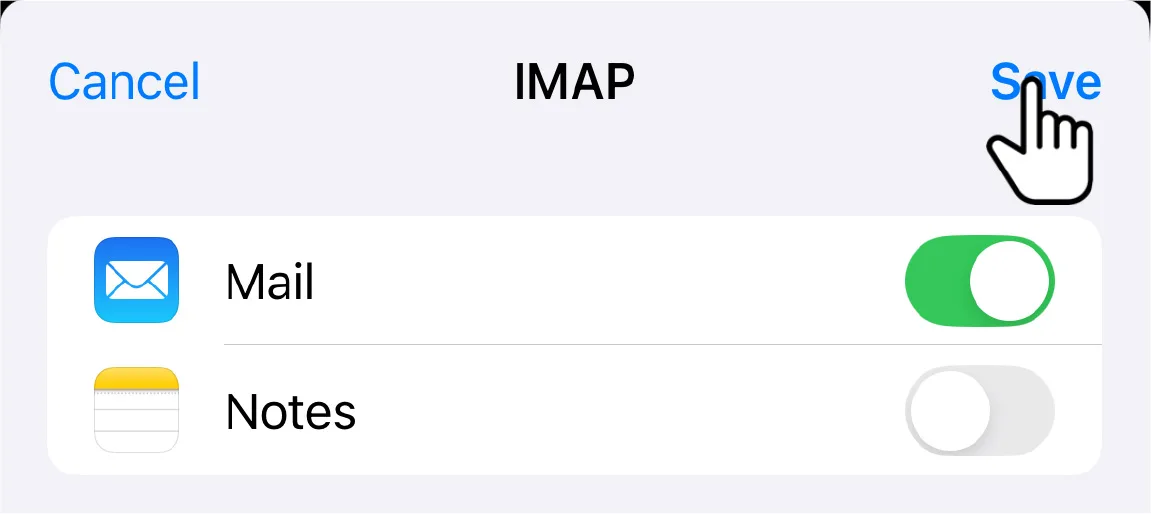
Tap Save
If your email settings are correct, tap Save to finish. If the email settings are incorrect, you’ll be asked to edit them.
Apple Email Setup
- Settings
- Apps
- Mail app
- Mail accounts
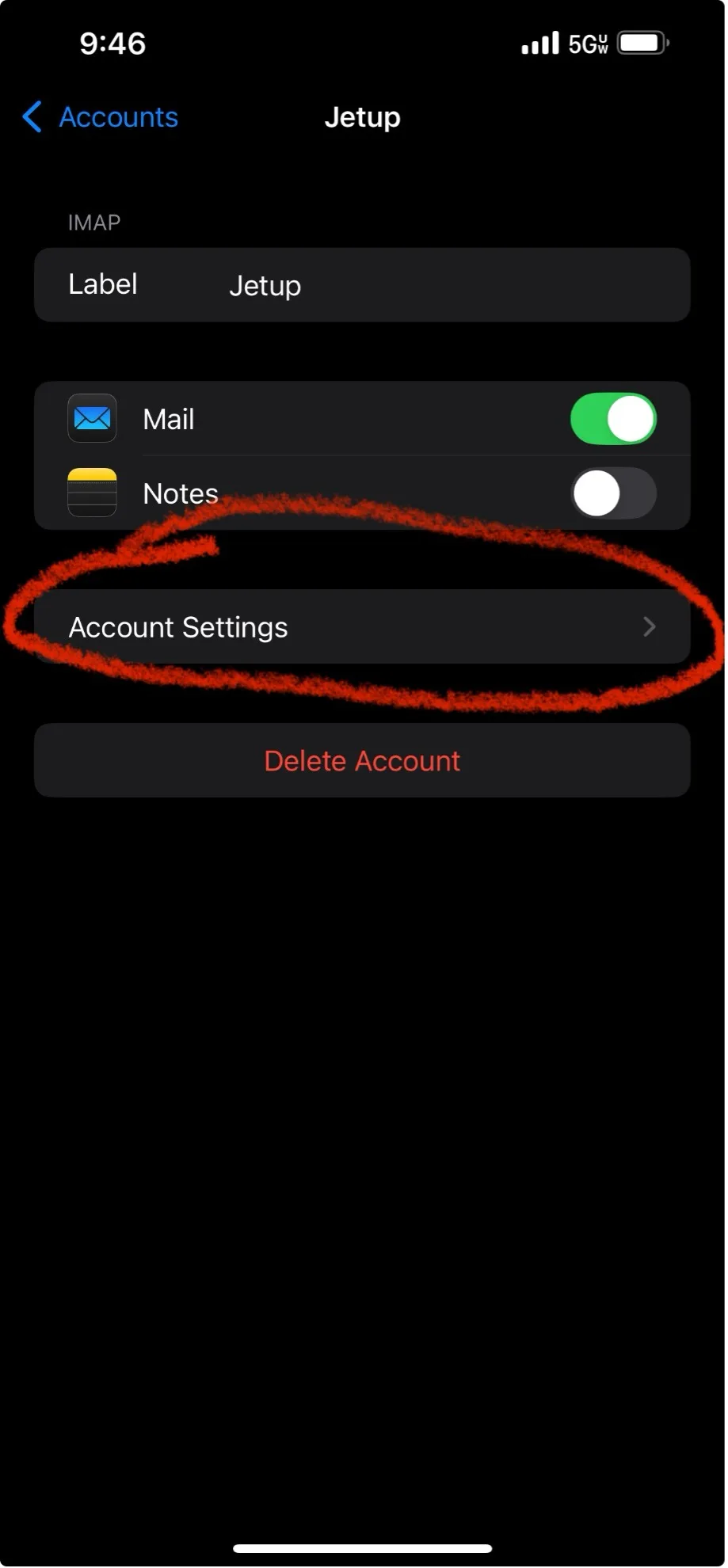
- Add account if new setup (Jetup if changing settings)
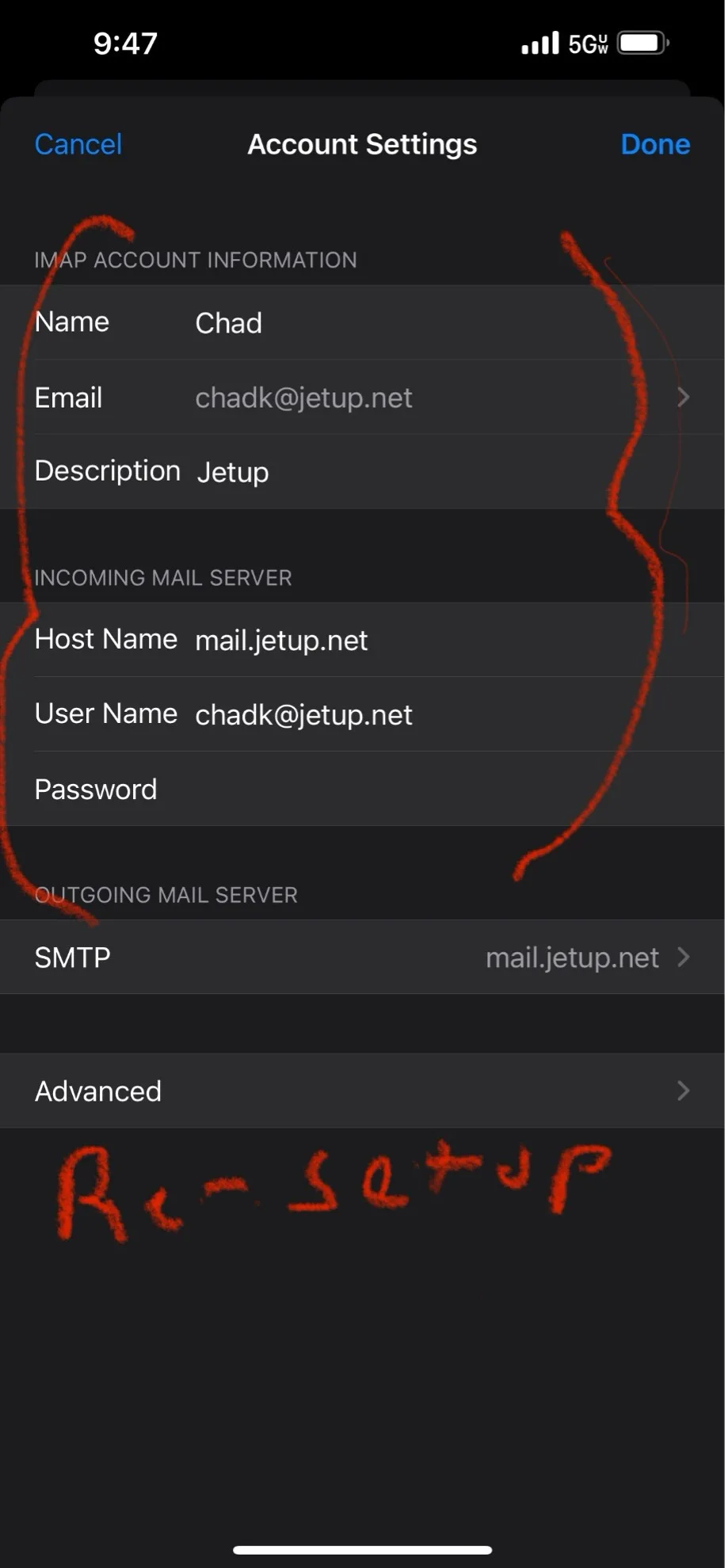
- Account settings
- Name : Jetup
- Email : email@jetup.net
- Incoming Mail Server – mail.jetup.net
- User Name – first part of email address
- Password – Customers password
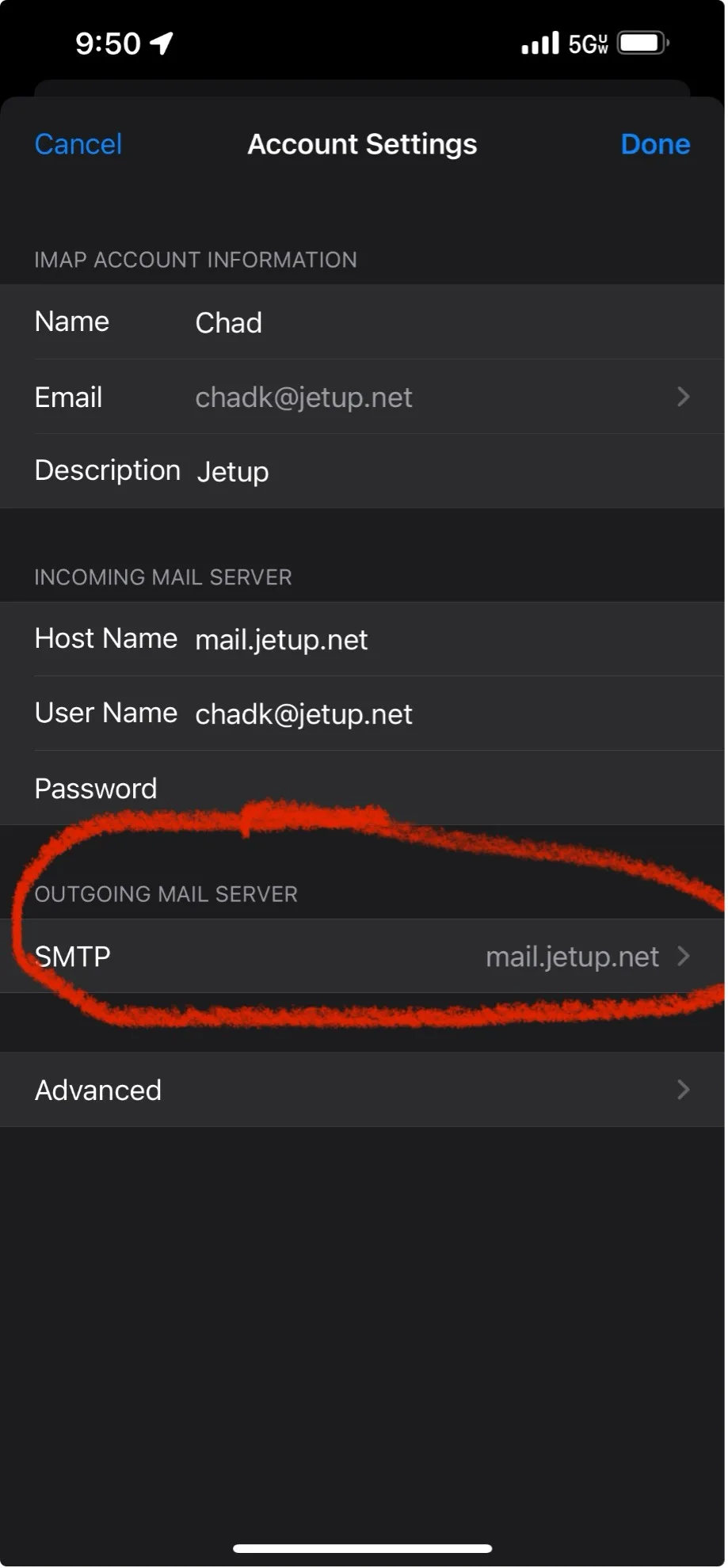
- Outgoing mail Server – mail.jetup.net (described as Host Name)
- User name – first part of email address
- Authentication – Password
- Done – test account